> For the complete documentation index, see [llms.txt](https://docs.liquiflow.app/llms.txt). Markdown versions of documentation pages are available by appending `.md` to page URLs; this page is available as [Markdown](https://docs.liquiflow.app/add-ons/liquiflow-elements/product-variant-swatch.md).
# Product Variant Swatch
{% columns %}
{% column %}
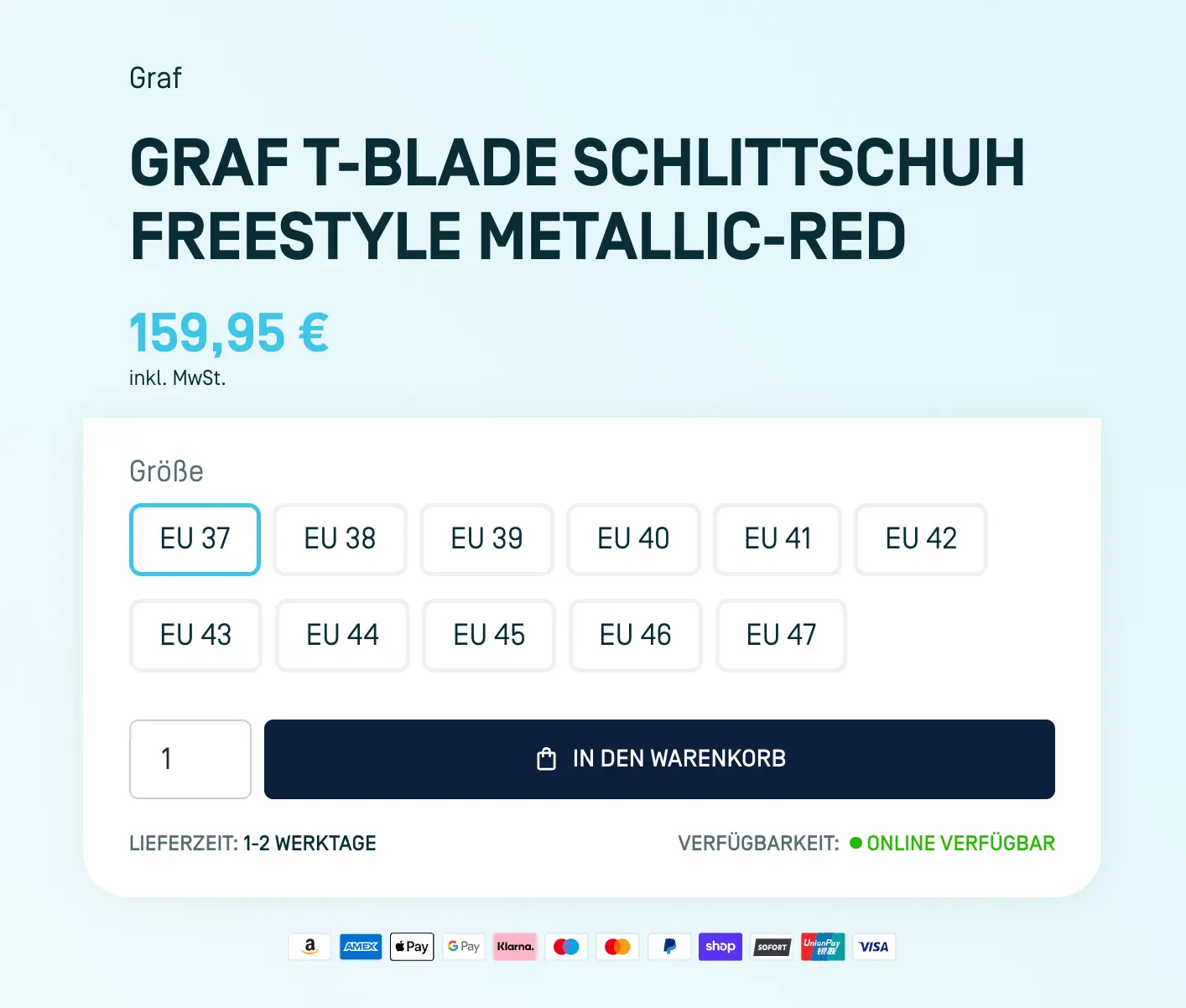
We've developed a specialized component for both the Product Page and Product Item to enhance usability. The Product Variant Component enables you to generate a variant swatch, allowing variant selection without page reloading. It shows you what variant you're looking at and lets you change details when you choose a different one. Below, you'll find all the elements you can use.
{% endcolumn %}
{% column %}
{% endcolumn %}
{% endcolumns %}
### Product Variant Component (Radio Buttons)
Here you can find all the Elements which are needed and can be used inside the Product Variant Component. The grey outlines show how the elements should be nested within one another.
**product-variant-container:** This Element wraps and renders the component. All the following Element need to be inside this Element.
{% code title="Webflow" fullWidth="false" %}
```
li-element = product-variant-container
```
{% endcode %}
{% tabs %}
{% tab title="product-variant-container" %}
**add-to-cart:** This element enables the "add-to-cart" function. Whenever someone clicks on it, the currently selected variant will be added to the cart. It needs to be inside the `product-variant-container`
{% code title="Webflow" fullWidth="false" %}
```
li-element = add-to-cart
```
{% endcode %}
**checkout-add-to-cart:** This element enables the "add-to-cart" function but redirects the customer directly to the Shopify Checkout. You can choose between using either `add-to-cart` or `checkout-add-to-cart`, depending on your preferred action. It needs to be inside the `product-variant-container`
{% code title="Webflow" fullWidth="false" %}
```
li-element = checkout-add-to-cart
```
{% endcode %}
**add-to-cart-quantity:** This Attribute should be added to an input field. It allows your customers to adjust the quantity before adding the variant to the cart. It needs to be inside the `product-variant-container`
{% code title="Webflow" fullWidth="false" %}
```
li-element = add-to-cart-quantity
```
{% endcode %}
**product-options-loop:** This Element generates a list containing all the options created for that specific product (e.g., Size, Color, etc.). It needs to be inside the `product-variant-container`
{% code title="Webflow" fullWidth="false" %}
```
li-element = product-options-loop
```
{% endcode %}
{% endtab %}
{% endtabs %}
{% tabs %}
{% tab title=" product-variant-container > product-options-loop" %}
**product-options-name:** This Element shows the name of the option, such as "Color." It needs to be inside the `product-options-loop`
{% code title="Webflow" fullWidth="false" %}
```
li-element = product-options-name
```
{% endcode %}
**product-option-loop:** This element generates a list of all option values inside the option (e.g., Red, Green, etc.). It needs to be inside the `product-options-loop`
{% code title="Webflow" fullWidth="false" %}
```
li-element = product-option-loop
```
{% endcode %}
{% endtab %}
{% endtabs %}
{% tabs %}
{% tab title=" product-variant-container > product-options-loop > product-option-loop" %}
**product-option-input:** This Element represents a single option value, for example, "red," "blue," etc. When the Option Value is not available, the class `is-not-available` will be added. It needs to be inside the `product-option-loop`
{% code title="Webflow" fullWidth="false" %}
```
li-element = product-option-input
```
{% endcode %}
**product-option-name:** This Element needs to bin inside the `product-option-input` and displays the name of the current option value ("red", "blue" etc.). It needs to be inside the `product-option-input`
{% code title="Webflow" fullWidth="false" %}
```
li-element = product-option-name
```
{% endcode %}
{% endtab %}
{% endtabs %}
**direct-add-to-cart:** You can use this attribute without a `product-variant-container` if you don’t want to give users the option to select a variant. In this case, the first available variant will automatically be added to the cart.
{% code title="Webflow" fullWidth="false" %}
```
li-element = direct-add-to-cart
```
{% endcode %}
***
### Product Variant Component (Select Fields)
Here you can find all the Elements which are needed and can be used inside the Product Variant Component. The grey outlines show how the elements should be nested within one another.
**product-variant-container:** This Element wraps and renders the component. All the following Element need to be inside this Element.
{% code title="Webflow" fullWidth="false" %}
```
li-element = product-variant-container
```
{% endcode %}
{% tabs %}
{% tab title="product-variant-container" %}
**add-to-cart:** This element enables the "add-to-cart" function. Whenever someone clicks on it, the currently selected variant will be added to the cart. It needs to be inside the `product-variant-container`
{% code title="Webflow" fullWidth="false" %}
```
li-element = add-to-cart
```
{% endcode %}
**checkout-add-to-cart:** This element enables the "add-to-cart" function but redirects the customer directly to the Shopify Checkout. You can choose between using either `add-to-cart` or `checkout-add-to-cart`, depending on your preferred action. It needs to be inside the `product-variant-container`
{% code title="Webflow" fullWidth="false" %}
```
li-element = checkout-add-to-cart
```
{% endcode %}
**add-to-cart-quantity:** This Attribute should be added to an input field. It allows your customers to adjust the quantity before adding the variant to the cart. It needs to be inside the `product-variant-container`
{% code title="Webflow" fullWidth="false" %}
```
li-element = add-to-cart-quantity
```
{% endcode %}
**product-options-loop:** This Element generates a list containing all the options created for that specific product (e.g., Size, Color, etc.). It needs to be inside the `product-variant-containe`*r*
{% code title="Webflow" fullWidth="false" %}
```
li-element = product-options-loop
```
{% endcode %}
{% endtab %}
{% endtabs %}
{% tabs %}
{% tab title=" product-variant-container > product-options-loop" %}
**product-options-name:** This Element shows the name of the option, such as "Color." It needs to be inside the `product-options-loop`
{% code title="Webflow" fullWidth="false" %}
```
li-element = product-options-name
```
{% endcode %}
**product-option-select:** This attribute should be applied to a select element. We recommend using a Webflow custom element, as you’ll also need to add an attribute to the options within the select element. It needs to be inside the `product-options-loop`
{% code title="Webflow" fullWidth="false" %}
```
li-element = product-option-select
```
{% endcode %}
{% endtab %}
{% endtabs %}
{% tabs %}
{% tab title=" product-variant-container > product-options-loop > product-option-select" %}
**product-option-select-loop:** This Element represents a single option value, for example, "red," "blue," etc. This attribute needs to be placed on a option element inside the `product-option-select`. We recommend using a Webflow custom element for this.
{% code title="Webflow" fullWidth="false" %}
```
li-element = product-option-select-loop
```
{% endcode %}
{% endtab %}
{% endtabs %}
**direct-add-to-cart:** You can use this attribute without a `product-variant-container` if you don’t want to give users the option to select a variant. In this case, the first available variant will automatically be added to the cart.
{% code title="Webflow" fullWidth="false" %}
```
li-element = direct-add-to-cart
```
{% endcode %}