> For the complete documentation index, see [llms.txt](https://docs.liquiflow.app/llms.txt). Markdown versions of documentation pages are available by appending `.md` to page URLs; this page is available as [Markdown](https://docs.liquiflow.app/section-converter/how-it-works.md).
# How it Works
## Core Principals
The **Section Converter** lets you convert individual sections instead of an entire theme. This is helpful if you want to build sections for themes that were not created with space.vars.Company, or if you just want to quickly test a section in Shopify without converting the whole theme.
In general, you can use all space.vars.Company attributes with the Section Converter — you’ll find them in our [documentation](/fundamentals/getting-started.md). The basic idea is the same as with the space.vars.Company Theme Builder. However, there are a few things you **cannot** use:
* space.vars.Company **Elements** (like Mini Cart, Variant Swatch)
* **Theme Blocks** (coming soon). Right now, the Section Converter only supports converting sections. So, the tag [`li-content-for-theme-blocks`](/section-settings/theme-blocks.md) is not supported yet. But you can still use [`li-block`](/section-settings/blocks.md) or [`li-content-for-blocks`](/section-settings/blocks.md) as usual.
* **Webflow Collection Lists:** Webflow does not copy the content of a Collection List item. Just use normal `div` elements instead.
* Webflow native interactions are not supported (yet).
* Combo classes that are defined globally will be empty, please add the global class somewhere in the section, so we can get the CSS values.
## **Step-by-step Guide**
{% stepper %}
{% step %}
First, build your section in Webflow.
{% endstep %}
{% step %}
Add the [`li-section`](/section-settings/sections.md) tag with a value for the section name to an element — this will be the element you copy later.
{% endstep %}
{% step %}
Inside the [`li-section`](/section-settings/sections.md) element, add custom functionality to let store owners change text, images, or other content. Here is the Documentation for all [li-settings](/section-settings/settings.md) and[ li-objects](/liquid-attributes/objects.md)
{% endstep %}
{% step %}
Then copy the element with the [`li-section`](/section-settings/sections.md) tag.
{% endstep %}
{% step %}
Open the space.vars.Company Section Converter and paste the Webflow component.
{% endstep %}
{% step %}
After conversion, copy the generated code.
{% endstep %}
{% step %}
Go to your Shopify theme’s code editor.
{% endstep %}
{% step %}
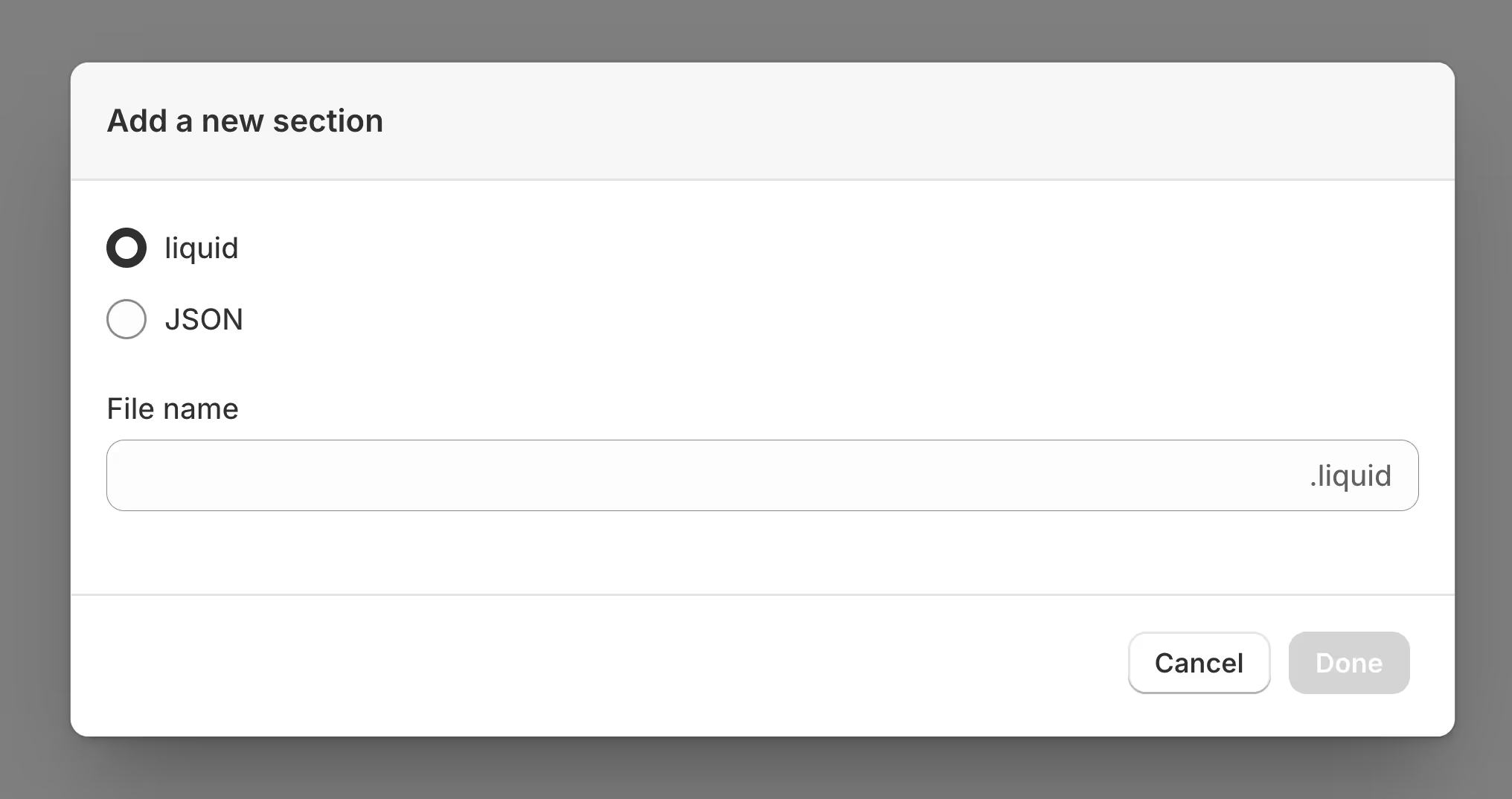
In the **Sections** folder, click **Add new section**.
{% endstep %}
{% step %}
Give it a name so you can find it later (this name is not shown in the Shopify editor).
{% endstep %}
{% step %}
Delete the default Shopify preset code and paste your converted code instead.
{% endstep %}
{% step %}
Save the section.
{% endstep %}
{% step %}
Go to the Shopify theme editor — you can now use, edit, and reuse your new section.
{% endstep %}
{% endstepper %}
{% hint style="info" %}
**Best Practice**
* The Section Converter automatically creates a `