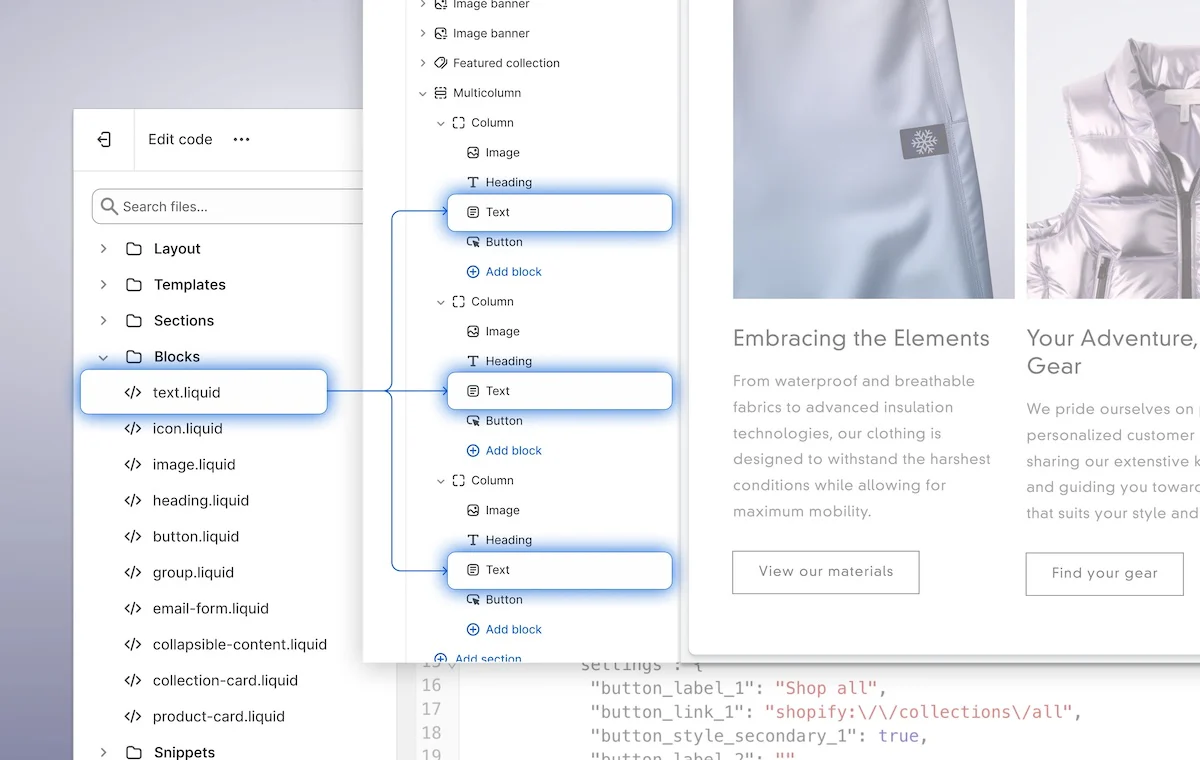
around each block. Since you already add the li-block to a wrapping element, this results in unnecessary nested \
s. Blocks are now rendered without Shopify’s extra wrapper by default. But if you need a specific HTML tag, you can use li-block:tag="div" (for example), which will wrap the li-block element in an tag.
{% columns %}
{% column %}
{% code title="Webflow" fullWidth="false" %}
```
li-block = Text
li-block:tag = div
```
{% endcode %}
{% endcolumn %}
{% column %}
{% code title="Shopify" fullWidth="false" %}
```html
```
{% endcode %}
{% endcolumn %}
{% endcolumns %}
#### Giving Access to all Theme blocks in a Theme
If you want a section to have access to all blocks in a theme, you can add `theme` as the value of the `li-cf-theme-blocks` attribute. Like this:
{% code title="Webflow" fullWidth="false" %}
```
li-cf-theme-blocks="theme"
```
{% endcode %}
#### Private Blocks
By adding an underscore (\_) in front of a block name (li-block=”\_Image”), you can make the block private to a specific section. This prevents it from appearing in sections that have access to all theme blocks. This gives you more control over how and where theme blocks can be used and combined. [Learn more here.](https://shopify.dev/docs/storefronts/themes/architecture/blocks/theme-blocks/targeting#private-blocks)